Following the loss of a great net control station, Doug, N6NFF, now a silent key, and our previous net manager, Diane, KK6LOE, the Daily Net has been only running on Monday and Friday mornings. We have good news! The Net is returning to five days a week! Join us each weekday morning for friendship, to promote the Handiham Program, and to exchange ideas on the many aspects of the amateur radio hobby. We will also have trivia questions to challenge your brain and maybe even increase your knowledge of ham radio. Plus, we will be getting to know each other by call sign, name, and voice, and, at times, a smile and a laugh. The daily Handiham Net is returning!
Author: Lucinda Moody
New Handiham Net Manager, Barry, K9AMO
Handiham Radio Club leadership (Linda Reeder, N7HVF, Tom Behler, KB8TYJ, and John Glass, NU6P) would like to announce the appointment of a new net manager, Barry McMills, K9AMO. We are please to welcome him to this position. Watch for an upcoming introduction from Barry in Handiham World and on this club website.
Handiham 55th Anniversary Special Event Station
On Friday, April 29th through Sunday, May 1st, the Handiham Program will celebrate its 55th anniversary. This is a pretty special accomplishment for any organization! We will be celebrating with a special event station sponsored by the Handiham Radio Club, and all currently licensed Handiham Program members and volunteers are welcome and encouraged to participate. The object is to work as many stations as possible during the time period. Participants may use all amateur bands and modes to make contacts, including digital and VOIP modes. Participants may contact any licensed amateur radio operator for the event. The event will start at 1900 UTC on April 29th and run through 1900 UTC on May 1st. Please QSL direct to the Handiham Program. Listen out for CQ Handiham 55!
QSL Information:
To receive a special Handiham card, QSL direct to:
Courage Kenny Handiham Program
3915 Golden Valley Road
Mail Route 78446
Golden Valley, MN 55422
Please include the call sign of the station you contacted. Feel free to also QSL direct to the station you worked.
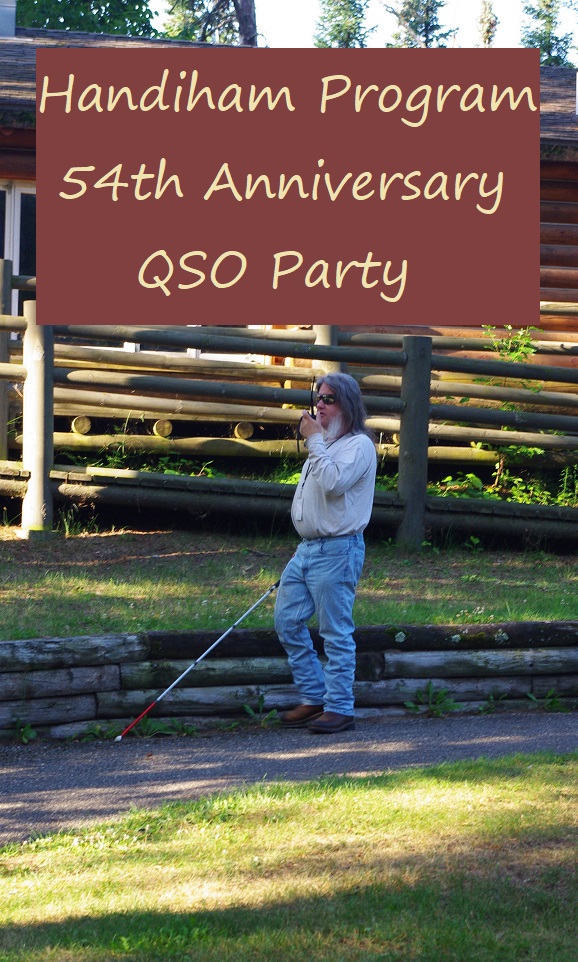
Handiham 54th Anniversary Special Event QSO Party
Overview:
This Friday, April 30th, the Handiham Program will celebrate its 54th anniversary. That is a pretty special accomplishment for any organization! We will be celebrating with a QSO party sponsored by the Handiham Radio Club, and all currently licensed Handiham Program members and volunteers are welcome and encouraged to participate. The object is to work as many stations as possible during the contest period. Participants may use all amateur bands and modes to make contacts, including digital and VOIP modes. Participants may contact any licensed amateur radio operator for the event. The contest will start at 1900 UTC on April 30th and run through 1900 UTC on May 1st. Logs will be required and may be submitted by mail or email no later than June 1st. The exchange is simply name and state, province, or country, and one point will be given per contact. Please have contacts QSL direct to the Handiham Program. Listen out for CQ Handiham 54!
QSL Information:
To receive a special Handiham card, QSL direct to:
Courage Kenny Handiham Program
3915 Golden Valley Road
Mail Route 78446
Golden Valley, MN 55422
Please include the call sign of the station you contacted. Feel free to also QSL direct to the station you worked.
James, KD0AES, SK
It is with great sadness that I report the passing of James, KD0AES. His family reached out to us today to share that he died. James was a life member who loved the Handiham Program and was greatly involved in helping out with the nets. He maintained a positive attitude and felt a sense of purpose in life from helping others. He will be greatly missed.
New Handiham Net Manager
The Handiham Radio Club congratulates Diane Fisher, KK6LOE, on her appointment as Handiham Net Manager. She was appointed during the first radio club meeting on the Zoom platform. We thank her for her willingness to donate her time in service to the Handiham Radio Club and all those who check into the many nets.
Handiham Special Event Station
Sponsored by the Handiham Radio Club
For a special 2020 Handiham QSL card, please QSL direct to:
Courage Kenny Handiham Program
3915 Golden Valley Road
Mail Route 78446
Golden Valley, MN 55422
Please include the call sign of the station you contacted. Feel free to also QSL direct to the station you worked if desired.
2020 Handiham Special Event Station
August 7, 5pm CDT (2200 UTC) to August 9, 11pm CDT (August 10, 0400 UTC)
Purpose:
This event provides an opportunity for all Handiham Members to get on the radio, make contacts, and have fun. This event also allows students who just attended a week of classes in operating skills to practice newly acquired skills.
Suggested information to share if working phone and not on a repeater or Echolink:
CQ CQ CQ Handiham Radio Club special event in honor of the Handiham Program celebrating 53 years of helping people with disabilities participate in the amateur radio hobby. CQ CQ CQ [your call sign]
Exchange:
Signal report, QTH, and your name and call sign.
Advise the contact that there is a special QSL card for this event and instructions are available at Handiham.org.
Log:
Include your call sign and QTH and station description
Date / UTC Time / Call sign / band / mode / signal report
Logs are due no later than August 31st
Prize categories:
• VHF/UHF (including Echolink and Repeaters)
• All Band Unlimited (VHF/UHF/HF—including Echolink and Repeaters)
Getting Radio Active in the Handiham Radio Club
We are working on getting this site up and active again for the Handiham Radio Club. Stay tuned for Radio Club information and announcements!
As a reminder, your current club leadership team is:
Club President: Linda Reeder, N7HVF
Club Vice President: Tom Behler, KB8TYJ
Club Secretary: John Glass, NU6P
Remotehams User’s Manual for Blind Hams
Remotehams User’s Manual for Blind Hams
By: Dr. Ronald E. Milliman, K8HSY
(1st edition, ©2015-2016)
Acknowledgements
I am hereby expressing my sincere appreciation for the contributions made to this manual by Dave Allen (WD8LDY) who was a tremendous help in reviewing the manual and making very constructive recommendations. In like manner, Lyle Koehler (K0LR) also reviewed the manual and made numerous excellent recommendations for improvements.
Getting Started Using the Remotehams RCForb Client
To date, the use of the Remotehams client is totally free. It is also usable by blind users; though, it could definitely be improved in this regard. The Remotehams website is actually quite accessible, but in contrast, the client software leaves much to be desired in terms of accessibility and blind user friendliness; though, it is usable.
What you can do: you can access numerous remotely controlled stations. You can listen and tune around. You can transmit only if you request and obtain permission from the station’s owner. You can change frequencies, bands, and modes. You can even transmit using CW on those stations set-up for CW operation. With speech enabled as described later in this Manual, you can hear exactly what mode the rig is in, what frequency, and thus, what band the rig is on. So, all of this is good. However, there are lots of things you cannot do as a screen reader user. You cannot adjust any of the slider controls or change the CW speed or adjust many of the other knobs, and controls that are adjustable by our fellow sighted hams. Perhaps we will come closer to more total accessibility over time, especially with more assertive encouragement by some of our vested interest organizations such as Handihams, ACB Radio Amateurs, and the National Federation of the Blind Amateur Radio Division.
To get started, it is highly recommended that you register with Remotehams. This is very easy to do. Go to the Remotehams’ website’s home page: http://www.remotehams.com and tab to the “sign up” link and hit enter on that link. It asks for the usual basic information, e.g. your email address, user’s ID, password, etc. It is strongly recommended that you use your callsign for your user’s ID. Then, shortly after you complete and submit your registration, you will receive a confirmation by email. You will need to follow the instructions in this confirmation to actually activate your account. Once you are registered, and have activated your account, you will have full access to the site.
Then, you need to download the RCForb client software by going to the “downloads” link. There you can download the most recent version of the client software. Like other similar downloads, you will have the option to either download it to your computer and install it, or you can run the .exe file without actually downloading the RCForb program to your computer. Just follow the prompts. When it is installed, you should have a shortcut icon on your desk top which you can click on to start the program.
It is highly suggested that you start by reviewing the keyboard commands given below before you try to access any stations. Otherwise, you will find your initial experience quite frustrating trying to figure out how to control the remote transceiver, e.g. changing frequencies, modes, etc. Also, you should always, without exception, check to make sure someone else isn’t already using the Remotehams station you are logging onto before you do anything else, before you change the frequency, mode or anything. If you don’t check to be certain someone else isn’t already using the station you just logged onto, and you switch frequencies or modes, you could be messing up someone’s qso, and that is definitely not at all the best way of gaining friends in ham radio, and it is my understanding that you could even be barred from logging onto such stations if the station owner receives complaints about your rude and inappropriate behavior when using the RemoteHams service. To check to see if it is okay to tune the transceiver you are logged onto using Remotehams, you can ask if it is okay if you tune if you are not the only person logged into the system. You can determine how many people are logged onto the station if you are using the JAWS screen reading program by switching to your JAWS cursor and arrowing down to where it says: “Users:” and it will show 1, 2, 3, or ever how many are logged onto that station. If the number is 1, then, you know the one person must be you, and you are free to change frequencies, switch modes, etc. However, if there is someone else logged onto the station besides you, you should ask permission to tune the rig either by clicking on the “ask to tune” button or using the keyboard command: ALT-SHIFT A.
Now, here are the other basic keyboard commands you need to be familiar within order to control and interact the Remotehams stations:
ALT-SHIFT-A Ask to Tune
ALT-SHIFT-M Tells you what mode the transceiver is in
CRTL-M Cycles through modes
CRTL-F Set cursor to frequency input textbox
ALT-SHIFT-F will give you audible frequency readout
CTRL+RIGHT arrow or left arrow moves the frequency up or down 0.1KHZ
Note: if you hold down the ctrl key and the right or left arrow keys, you can tune up or down the band.
CTRL+UP ARROW or DOWN ARROW moves the frequency up or down 1.0KHZ
Note: this command does not work with the JAWS screen reader unless you first press the insert-3 key combination and then, hit ctrl up arrow or down arrow. If you press insert-3 and then, hold down the ctrl up or down arrow, you will be able to tune up or down the band in 1 KHZ increments.
ALT-SHIFT-M Read mode
Note: Often this command will stick when you get to the end of the selections and not move; in which case, you need to hit ctrl-m twice in quick secession, and then, you can cycle through the selections again.
ALT-Shift-B reads the button control settings
ALT-Shift-D reads the dropdown settings
ALT-Shift-S reads the slider controls
Special Note: while these latter keyboard commands allow you to read the buttons, dropdown and slider settings, at this time there does not appear any way of actually changing any of these setting with keyboard shortcuts. It is hoped that the RCForb client software will be more accessible with future versions of the software.
Once you feel reasonably comfortable with these basic keyboard commands, you need to click on the Remotehams icon on your desktop and start the Remotehams’ client. Next, you will need to turn on the text-to-speech function by hitting the key combination alt-o, which opens the options menu. Then, arrow down to the text-to-speech selection and click on it. The first thing you will see is the text-to-speech option which needs to be enabled. If it is already checked, you can just exit out of the option menu; if it is not checked as enabled, you need to check it to turn the text-to-speech on.
Finding Remote Stations, Listening and Tuning
It is strongly recommended you invest some time just listening and tuning stations using the Remotehams client software before you try transmitting. Besides, you need permission from each station owner in order to be able to transmit on a station using the Remotehams software client. This will be covered in more detail in the next section of this user’s Manual.
To find stations to access and be able to listen to just for practice, open the Remotehams software client by hitting enter on its icon on your desktop. When the program opens, you will see a vertical list of stations, one per line. They seem to be in alphabetical order by country. If you go to the very bottom of this list, or to the bottom of your screen, you will find stations in the United States. By arrowing up line-by-line, you will see different stations that you can click on to listen to. If you click on their calls, you will hear their transceivers, and an “OK” will pop up on your screen. Click on the OK, and you are ready to tune around by using the keyboard commands given above. Remember, to check to see if someone else is already using the station, and if they are always ask if you can tune before changing the frequency. If you are the only one shown to be using the transceiver, then, you are free to tune around, switch bands, modes, etc.
Alternatively, if you are interested in finding Remotehams in your specific country or state or surrounding states, you can go to the Remotehams website, then, to the Online Remotes link and click on it. That will take you to the Online Remotes page where you can sort the database by location, remote name, or radio type. If, for an example, you want to find all stations available in the state of Michigan, you can sort by location, and then, use your screen reader’s find command to find all of the stations listed in Michigan. They are listed by their state abbreviation; thus, Michigan would be listed as MI, and it is immediately followed with a comma; so, you would search for MI, putting a space before the MI and a comma immediately after it. Don’t be surprised if you find only one or two stations listed for your state. Hopefully, more will start using the Remotehams software in the future. Once you find a station that is available, you can just click on the call letters to begin listening to it following the user’s Manual instructions and keyboard commands given above. Alternatively, you can copy the call of the station, then, go to the RCForb client, click on the files menu, arrow down to “new Connection,” hit enter, and tab down to “nickname:” and type in the call of the station you want to go to. If there is already a station call in that edit box, you will need to delete it and type in the new station you want to go to. You can either just hit your return or enter key or tab down to “connect,” and hit return on it. Once you have gone to a station it is included automatically in your “Recent connections” list, which you get to by opening the files menu with alt-f, and it will be the first selection.
Transmitting Using the Remotehams Client Software
Once you are comfortable with the basic keyboard commands, logging onto different Remotehams stations, tuning around, changing frequencies, bands, modes, etc., you are ready to tackle transmitting using the Remotehams client. This is very simple, with one very slight exception, and that exception is that you must upload a copy of your ham license to the Remotehams’ website. The good thing is that you only need to do this one time. It is really easy to do. You need to get a digital version of your amateur radio license. If you don’t already have one, you can scan in an image of your license and save it as a .JPEG file. It says on the Remotehams website that you can upload a copy of your license in any one of several different formats: BMP, GIF, JPG, PDF, PNG, or TIFF. It must be noted that some people have encountered difficulty getting the PDF copies of their ham license to upload to the Remotehams website. However, no one has expressed any problems getting Remotehams to accept JPG versions.
You can upload a copy of your license to the Remotehams website from the website or from the Remotehams RCForbs software client. Just click on where it says something like “upload amateur radio license.”
Select browse, and then, find the digital copy of your license in whatever folder you saved it on your computer’s hard drive and click it; and then, press the send file button. When received, you should see an announcement letting you know it was successfully uploaded. If, for some reason, your license has not been successfully uploaded, when you go to your remotehams account, it will tell you something like: license not uploaded. However, if you have successfully uploaded a copy of your license, it will say:
Manage Your License
License image
(Click Image to Enlarge)
An image of your uploaded license will be displayed. Only the significant words are given here to let you know what you should hear.
OK, you are registered; you’ve accessed a few stations and familiarized yourself with the basic keyboard commands, and you have successfully uploaded a copy of your ham license. Now, you are ready to make some contacts.
The next hurdle you need to get over is obtaining permission from the stations’ owners allowing you to use their transceivers for transmitting. This is accomplished by accessing a station you want to transmit on, and hitting the keyboard command: ctrl-t. This is the command to toggle the transmit function on and off. The first time you do this, you will see an OK on the screen, but if you tab once, you will see the: request permission button. Click on this button to request permission to transmit using this transceiver. It may take you a few days to obtain permission, and sometimes, permission is not granted. Several of the stations are club owned, and you have to be a member of the club to use it. If it is an individual’s station, it is suggested that in addition to requesting permission using the RCForb client, you also look the individual up in the QRZ database to find his/her email address and write them a short note introducing yourself and requesting permission to use his/her station. Often this will get you a quicker response, and it also increases your likelihood of gaining his/her consent to use the station. Often the only way you know you have permission to use a station is by logging on and looking at your callsign; if there is an X next to your call, you have permission; if not, then, you don’t.
Once you obtain permission to use a station, you need to log onto it. Make sure you are OK to use it, and tune around to find someone calling CQ, or a net you can check into, or a QSO that you would like to join or find a clear spot on the band that you are allowed to use given your class of license, and call CQ yourself. Whatever you do, to transmit, you use the keyboard command: ctrl-t. This command toggles the transmit on and off. There is a very slight lag between the instant you hit ctrl-t and begin actually transmitting. This slight lag is especially noticeable when you toggle the transmit off. In some instances, you might even miss the first word or two of the person you are talking to.
Special Note: Handihams currently has one of its stations set-up for Remotehams access; it is W0ZSW. Soon, WA0EQO should also be accessible using the Remotehams RCForb client. Since these stations are not checked everyday by their custodians, you should contact the Handihams’ office to request permission to use these stations. Thus, you need to access these stations using the RCForb client on your computer and request access, but in addition, you should also contact the Handihams’ office either by email or a phone call requesting access. As suggested above, this is a good procedure to follow when requesting full access to any of the stations, not just Handihams.
Are you a CW operator? You can use Remotehams on CW too. Not all stations are set-up for the CW mode of operation, but some are. You can type what you are sending on your computer’s keyboard, and it is resent out by the Remote station’s keying software. You need to look for those remote stations that indicate they are CW capable and seek access to those stations as described earlier in this manual.
It is a little tricky to get into. First, you need to change the mode to CW by using the keyboard command CTRL-M. Next, you need to use the keyboard shortcut to get into the “Window Screen.” You do this by hitting your tab key two or three times and then, use the key combination of ALT-W. If the Window screen does not pop open, try tabbing a couple of more times and hit ALT-W again. Once this Window Screen opens, you need to arrow down to “CW Keying” and hit enter. Now, you need to tab once or twice again and hit ALT-W a second time and, once again, arrow down to “CW Keying” and hit enter. Now, you should be where you need to be to begin operating CW. If you type in your call, for example, you should hear it coming back through the monitor in CW. You can type as fast as you want. The code will be sent only as fast as the CW is set for, e.g. 15 wpm, 20 wpm, etc. At the time of this writing, no method has been found for being able to adjust the keying speed when using a screen reader.
Reserving Time Slots
If you donate to the RemoteHams developers, you can reserve 30 minute time slots when only you and the administrator can tune the radio. When in the RCForb client, the keyboard command ALT-R will place you in the reserve time slots area where you can donate to the RemoteHams developers. If you decide to contribute financially, you will be rewarded one (1) 30 minute Reserved Slot for each dollar ($1 USD) contributed.
Reserved Slots may be used on a remote to prevent another user from “tuning” the remote for a 30 minute session. This can be very useful in reserving a remote for a Net, contest, working a dx contact or just to prevent any unwanted interference with remote operation. All other users connected to the remote will have RX only permission during this time. This does not override administrators, they always have control of the remote for security reasons and are visible with an (A) in the remote’s user list.
(You will be rewarded Reserved Slots instantly when contributing through PayPal.)
A Final Word of Caution
Most of the blind hams that are using the Remotehams RCForb client have reported discovering many inconsistencies in the way the client looks with their screen readers and the way the various commands work or don’t work. Some of these inconsistencies seem to come from the fact that the station owners can select different skins which greatly affect how the rig appears on the computer screen. Thus, in like manner, this also greatly affects how the controls are arranged and what you see with your screen reading program. The other explanation for some of the inconsistencies is the fact that many different makes and models of ham transceivers are being used, and it is extremely difficult for one software client to work exactly the same across all of these different platforms and pieces of equipment.
The key point, however, is that we are fortunate to have this kind of technology available to us, and for the most part, it is pretty accessible, not perfect certainly, but definitely useable.
73,
Ron, K8HSY
Dr. Ronald E. Milliman, retired Professor of Marketing